
1 Introduction
The order schedule is an exclusive time management tool in the Linkincrease workbench for those responsible for order milestones. Through calendar visualization and data linkage, it helps users accurately grasp milestone time nodes and progress status, and efficiently promote supply chain order collaboration.
2 Calendar Operations
2.1 Default Display and Switching
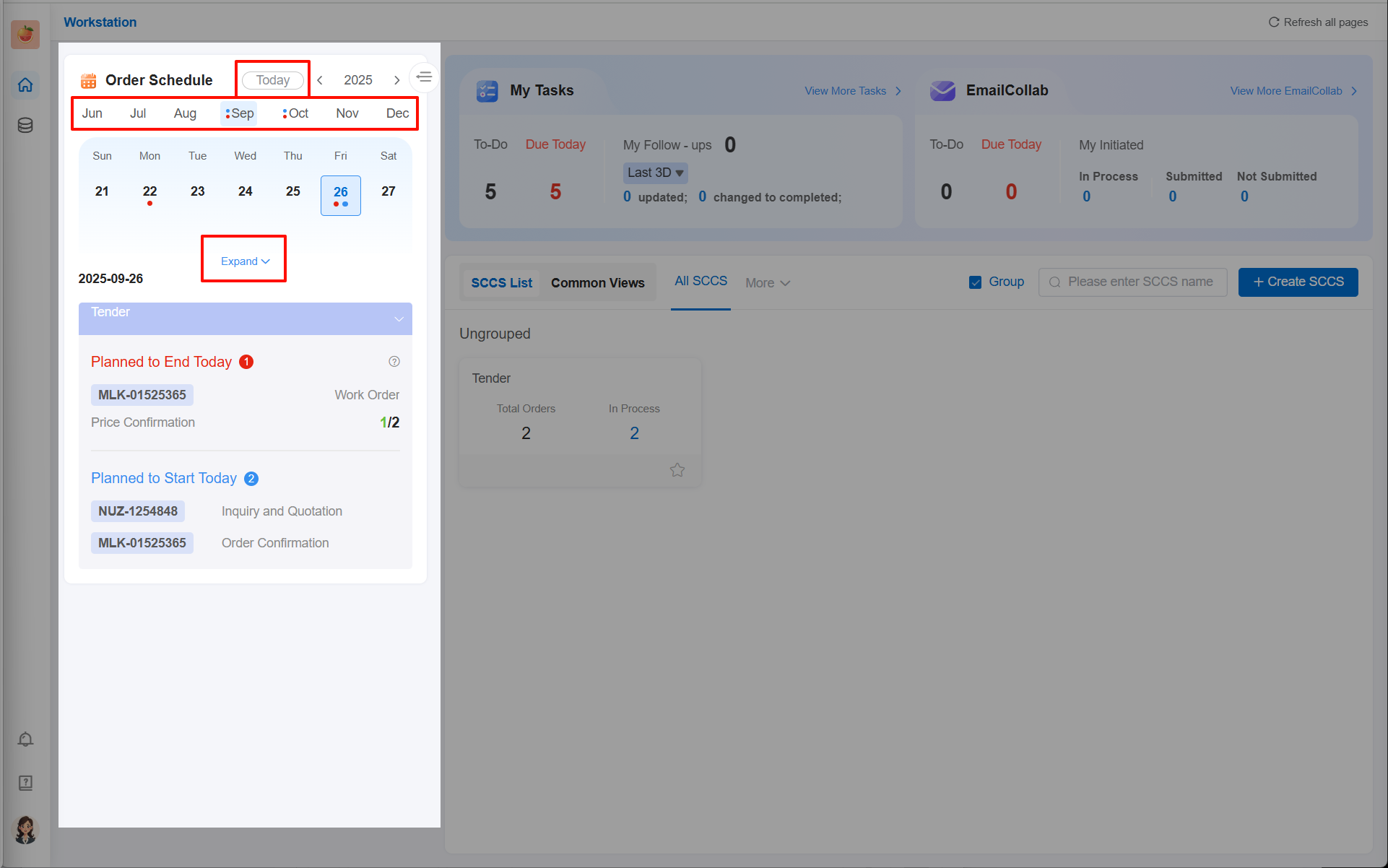
Initial display: The calendar displays the current week by default, with the time positioned on today.
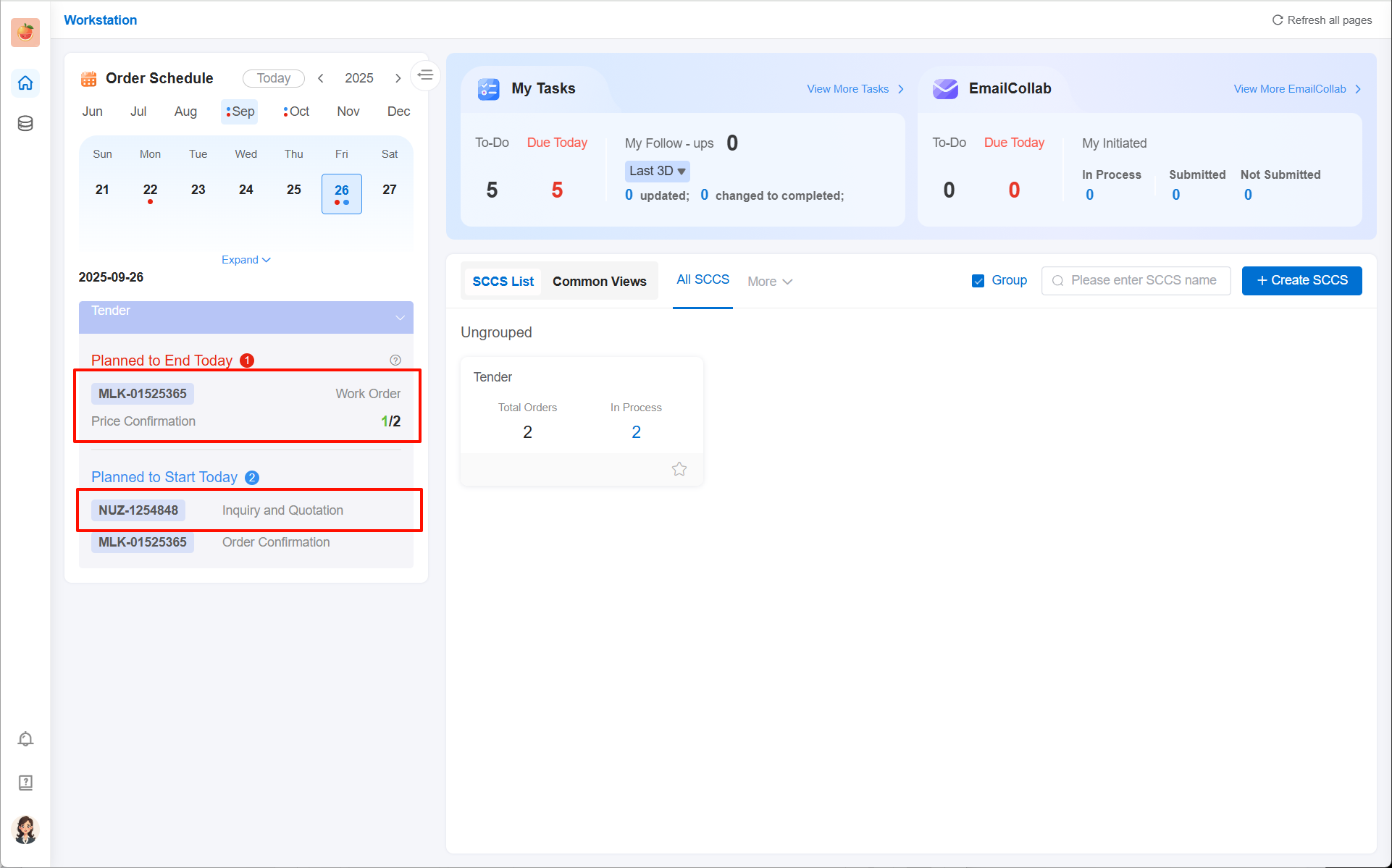
Expand / collapse the current month's calendar: Click the "Expand" button below the calendar to switch to the full calendar view of the current month and check the milestone marks for all dates in the month; click the "Collapse" button to restore the default current week view and focus on short-term schedules.
Cross-month switching: Click the buttons of other months at the top (or side) of the calendar to switch to the calendar view of the corresponding month, check the distribution of milestones in historical or future months, and support advance planning of long-term collaboration rhythms.
Today: Click "Today" to quickly locate today.
2.2 Milestone Status Identification (Color Dots)
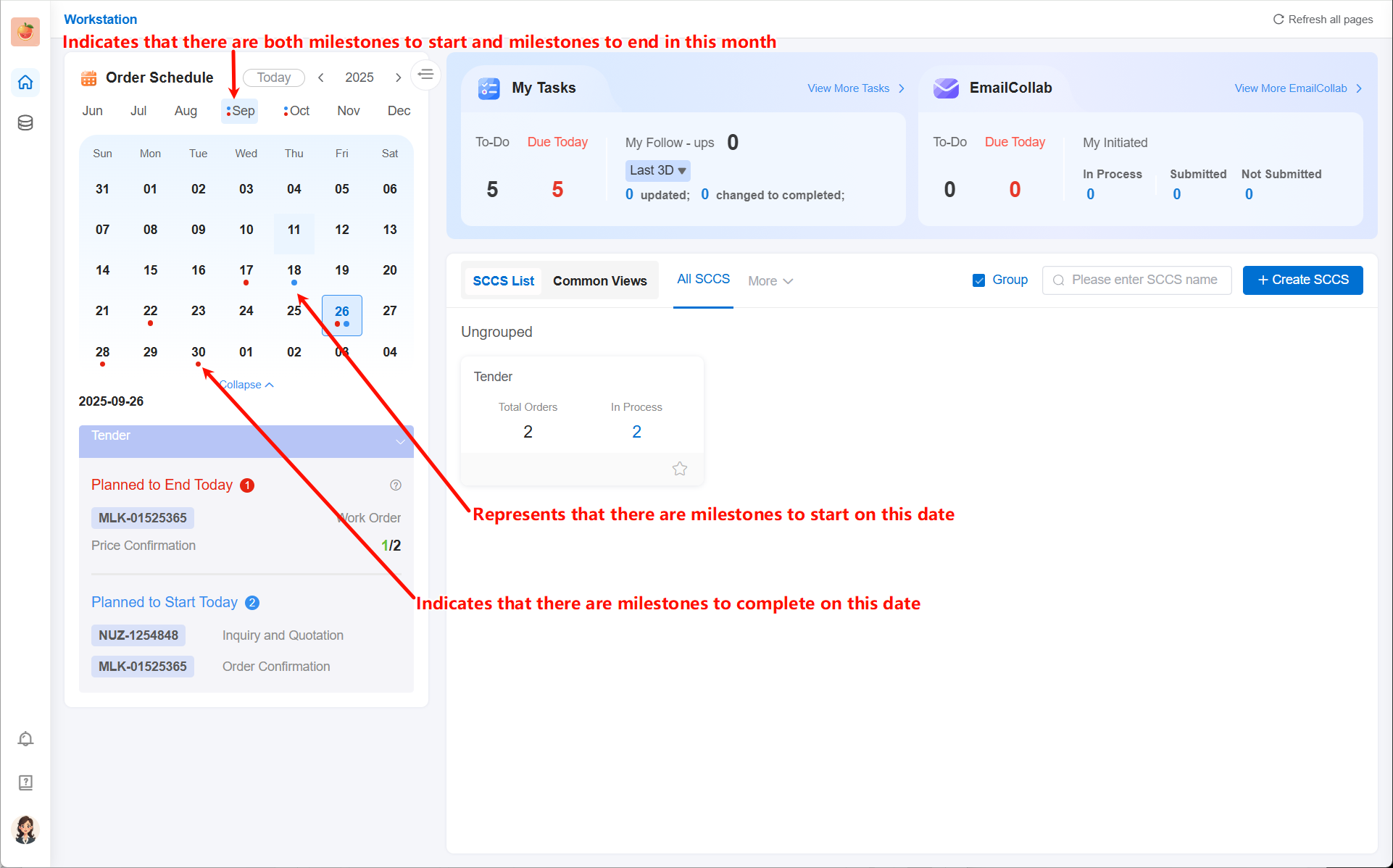
Different colored dots below each date in the calendar intuitively distinguish the milestone status of that date, allowing for quick identification without clicking:
- Red dot: Indicates that there is a "to be completed" milestone on that date (the person in charge needs to complete the operations related to the milestone on that day);
- Blue dot: Indicates that there is a "to be started" milestone on that date (the person in charge needs to start the collaboration process corresponding to the milestone on that day, such as assigning work orders, initiating data collection, etc.);
- No dot: Indicates that there are no milestones to pay attention to on that date (no tasks to start or complete).
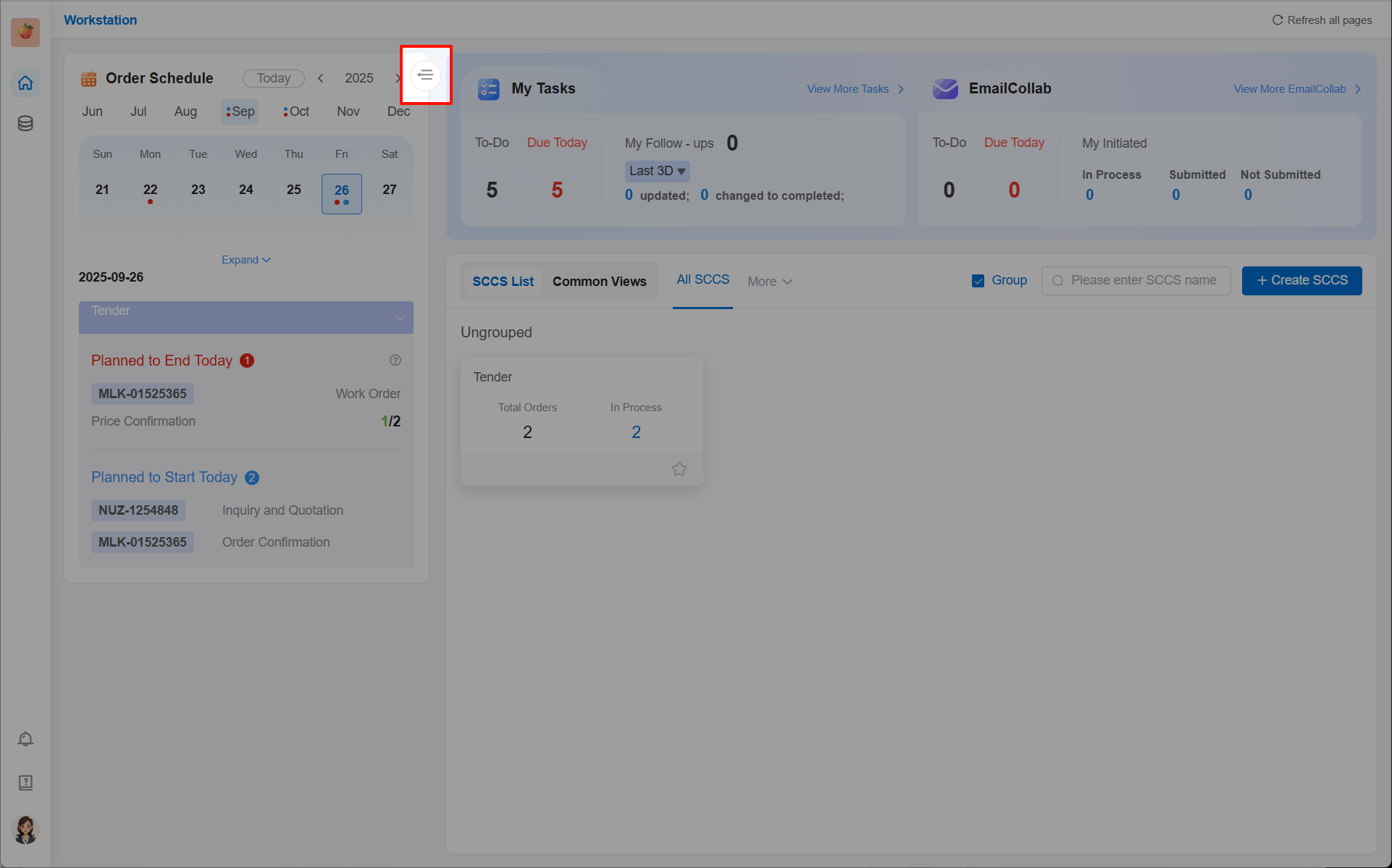
2.3 Collapse/Expand Order Schedule
3 Milestone Data Viewing (Area Below the Calendar)
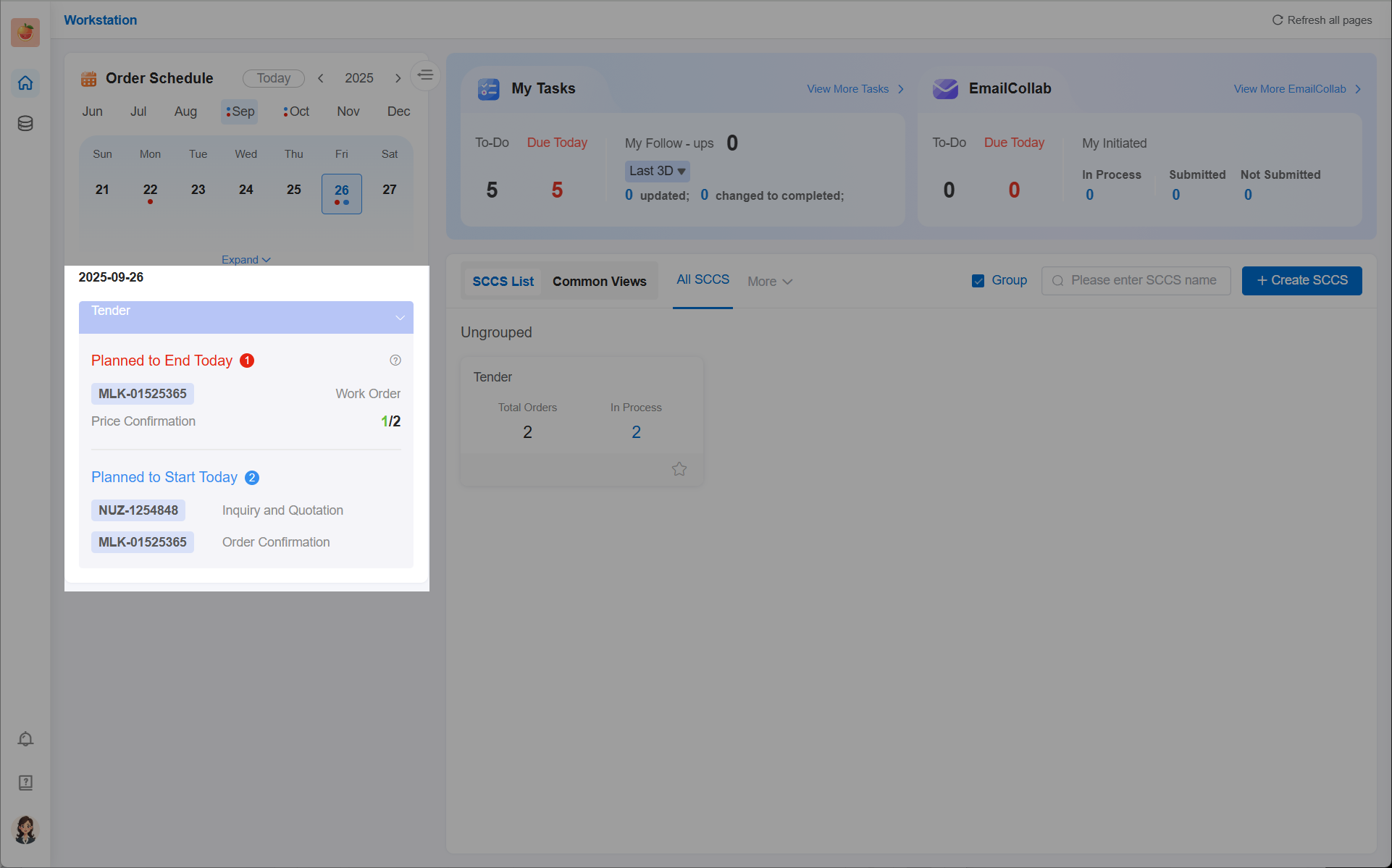
The area below the calendar will display the milestone details of the currently selected date in real time, showing today's data by default. After clicking other dates, the data will be refreshed synchronously, including the following contents:
Data classification display
- Planned to be completed today: Lists all "to be completed" milestones on the currently selected date. Each piece of data includes the "order name" and "milestone name", clearly linking to specific collaboration scenarios;
- Planned to start today: Lists all "to be started" milestones on the currently selected date. The data structure is consistent with "Planned to be completed today", facilitating quick location of tasks to be started.
Progress details of to-be-completed milestones For "planned to be completed today" milestones, you can view the completion status of work orders (only supported for to-be-completed milestones, not for to-be-started ones):
- Work order data collection progress: Displays the information collection completion status of all work orders under the milestone, helping the person in charge grasp the progress of basic data preparation. For example, "3/5" means there are 5 work order tasks under the milestone, among which 3 have completed data collection.
- Work order approval progress: If the order template corresponding to the milestone is configured with the "work order approval" function, the approval completion status will be displayed synchronously. For example, "2/3" means 3 work orders in the milestone, and 2 have been approved; if work order approval is not configured, this module will not be displayed to avoid information redundancy.
4 Jump Operation (Enter Order Details)
On the order details page, the person in charge can directly carry out subsequent operations, such as:
- Approving and confirming "to be completed" milestones;
- Assigning work order tasks to "to be started" milestones;
- Viewing the complete collaboration records of all milestones and work orders under the order, without multiple jumps, realizing seamless connection between "viewing and operation".